
Create slides withMOVO AI
Create presentations with AI, edit every slide, and export editable PPTX files.
Real-time cloud sync
Projects are saved online as you work, so you can leave a deck, return later, and continue editing from the latest saved version.
Visual canvas control
Select text, shapes, and images directly on the canvas to refine layout, color, and typography before exporting editable text and native shapes to PPTX.
Premium templates
Choose a presentation style before generation and use it as the visual direction for the entire deck, from the opening slide to the final summary.
Complete design system
MOVO carries a shared visual direction across slides while leaving colors, type, shapes, and layout available for final adjustments in the editor.
Agentic AI pipeline
Add a prompt or source material, review the proposed outline, and let MOVO generate a complete first draft that is ready for further editing.
Conversational AI editor
Describe a change in natural language. The AI reads the current slide context and updates the slide while keeping the rest of your workflow in one editor.
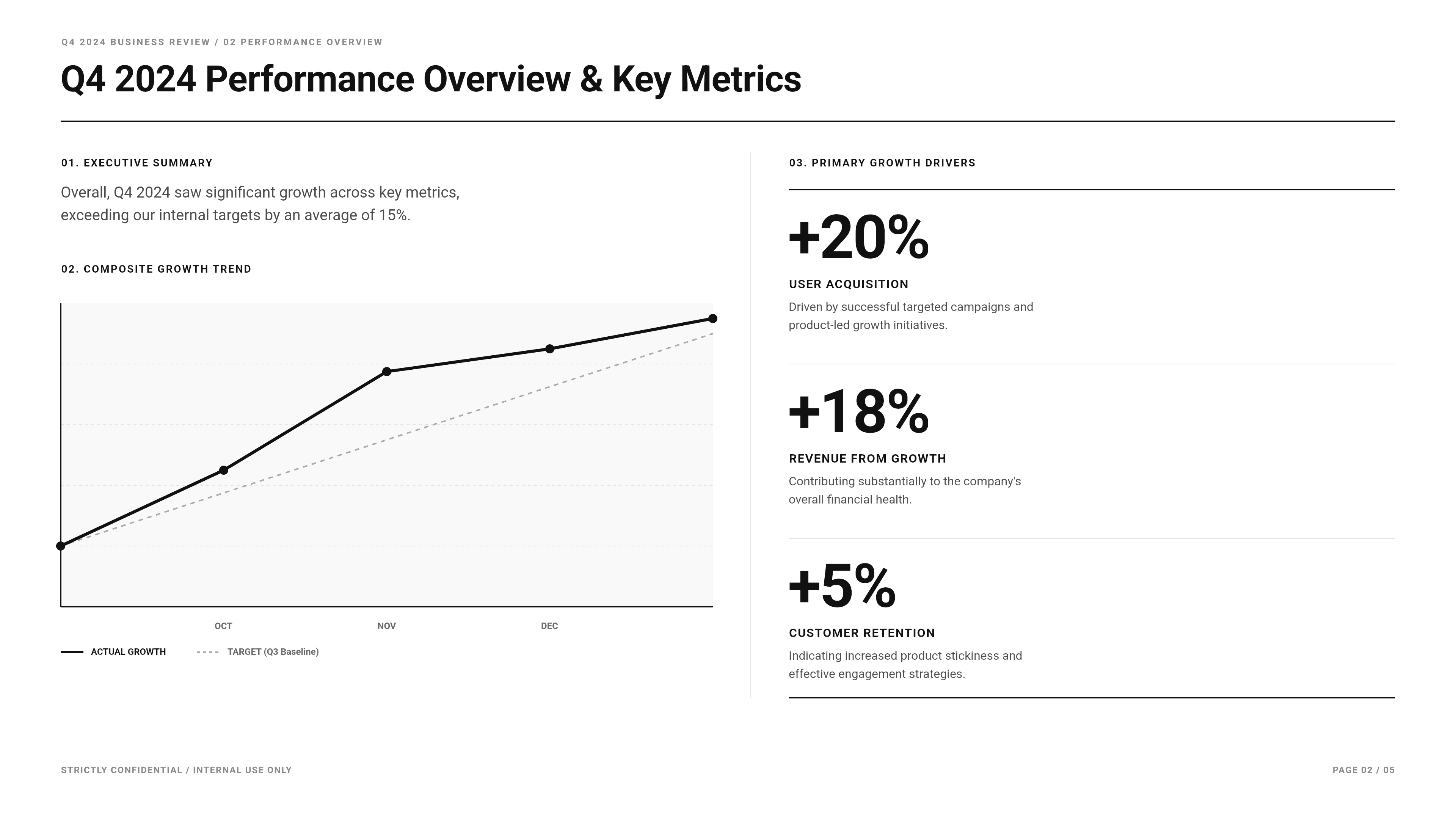
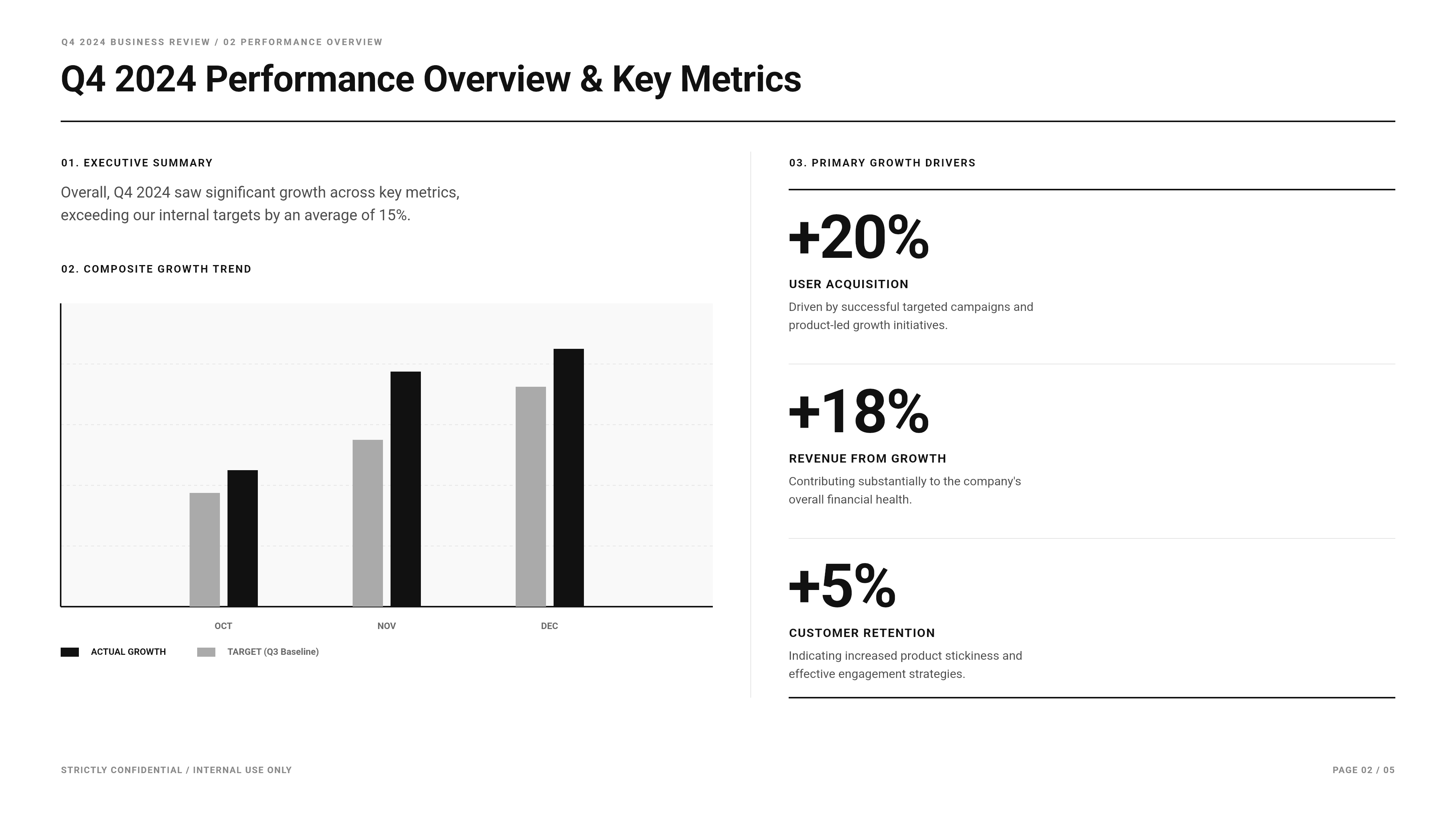
What is MOVO AI?
MOVO AI is an AI presentation maker that turns a document or a one-line prompt into a deck. It drafts the outline first, then applies a style and generates the slides.
You can refine any slide on the canvas or ask the AI to change it in chat. Decks export to PPTX, PDF, PNG, Figma, and the PPTX keeps editable text and native shapes.
Document to deck
PDF
Turn reports and research material into presentation flow.
Word
Compress proposals and drafts into slide messages.
Excel
Bring tables and metrics into a deck-ready structure.
Image
Analyze PNG, JPG, and WebP references with the deck.
Text/CSV
Use text and CSV files as generation context too.
How do you create a presentation with MOVO AI?
- 1
Enter a topic or upload a document in the search bar.
- 2
Review and adjust the outline the AI proposes.
- 3
Pick a presentation style and color direction.
- 4
Generate the slides and fine-tune details on the canvas.
- 5
Export the finished deck to PPTX, PDF, PNG, Figma.
Frequently asked questions
Need more detail? Browse the Help Center
What kind of presentations can I make with MOVO AI?
MOVO AI works best for structured decks such as business plans, investor pitches, lecture slides, and report presentations. You can start from a topic alone, or upload a PDF or Word file and build the deck from its content.
Can I edit the exported PPTX in PowerPoint?
Yes. Text is saved as text boxes and shapes as native shapes, so you can edit them directly in PowerPoint or Keynote. Slides are not flattened into images.
Can the AI revise slides after they are generated?
Describe the change in the editor chat and the AI updates that slide for you. This suits repetitive work such as rewording copy, tidying layouts, or changing colors across a deck.
Is there a free plan?
The Free plan includes 300 credits per month and up to 5 slides per deck, with PDF and PNG export that carries a watermark. PPTX and Figma export start with the Pro plan at $19.99 per month.
What files can I use as input?
MOVO AI accepts PDF, Word, Excel, images, and plain text as input. Upload several files together and the AI merges their content into one presentation flow.
Latest articles
View all posts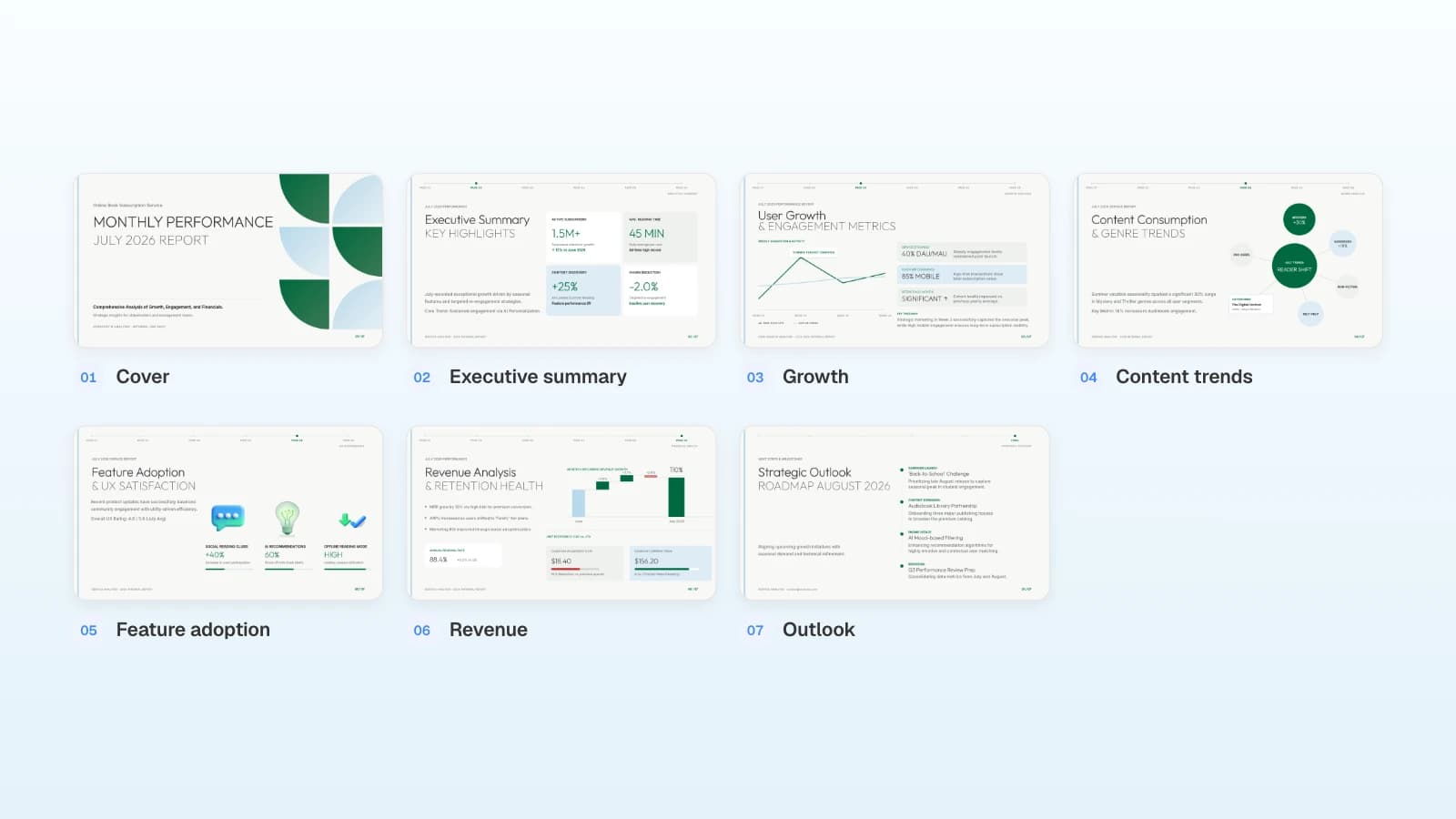
Gamma vs Genspark vs Skywork in 2026
Gamma vs Genspark vs Skywork, compared on inputs, editing, design, export formats, and prices from each vendor's own pricing and help pages in September 2026, plus who each tool fits and where MOVO fits.
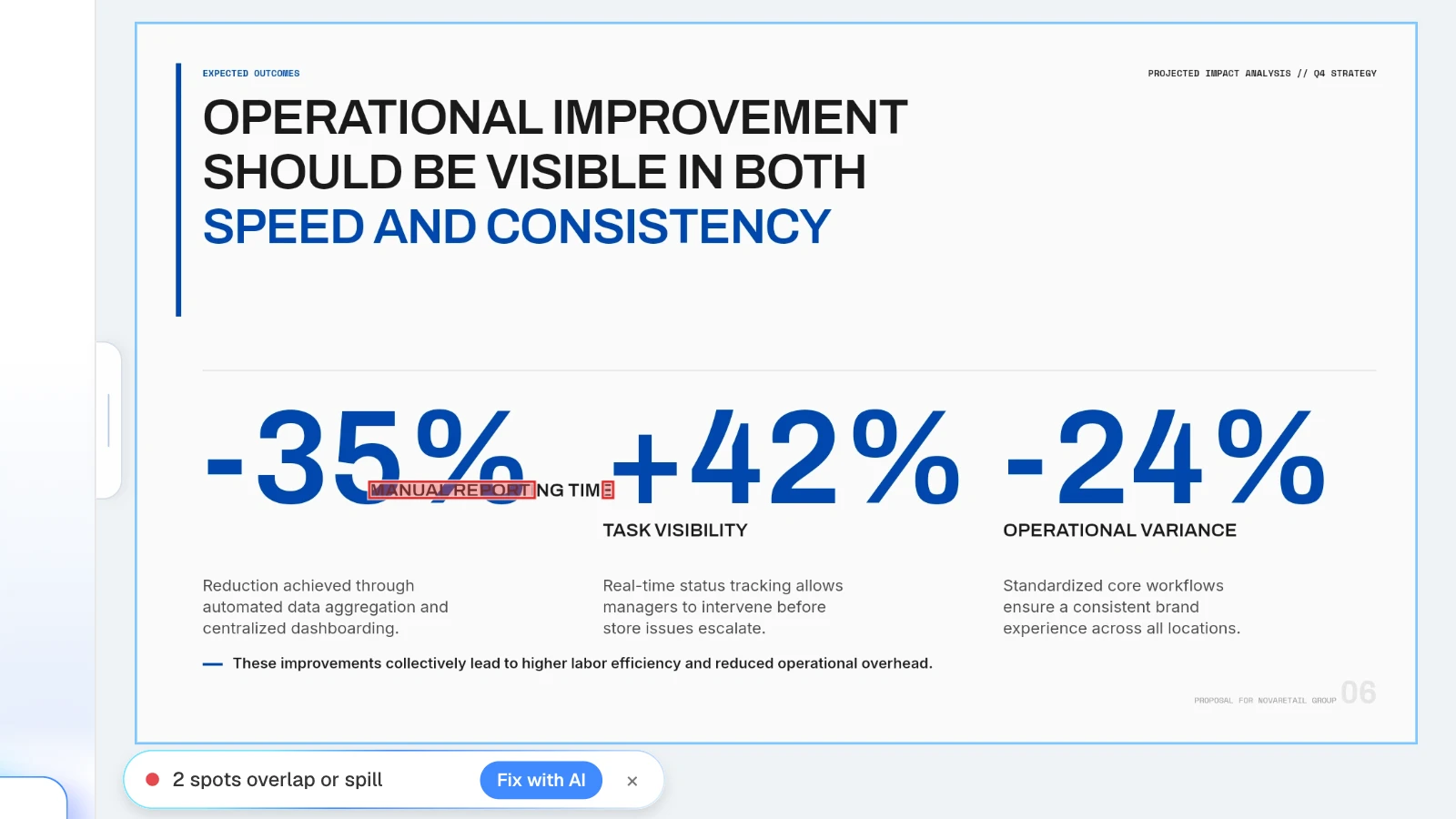
How to Fix Overlapping Text in AI Slides
Why text overlaps or gets clipped in AI-generated slides, what MOVO's Check layout finds and misses, how to fix it with Fix with AI or by hand, and what to do when only the PPTX overflows.
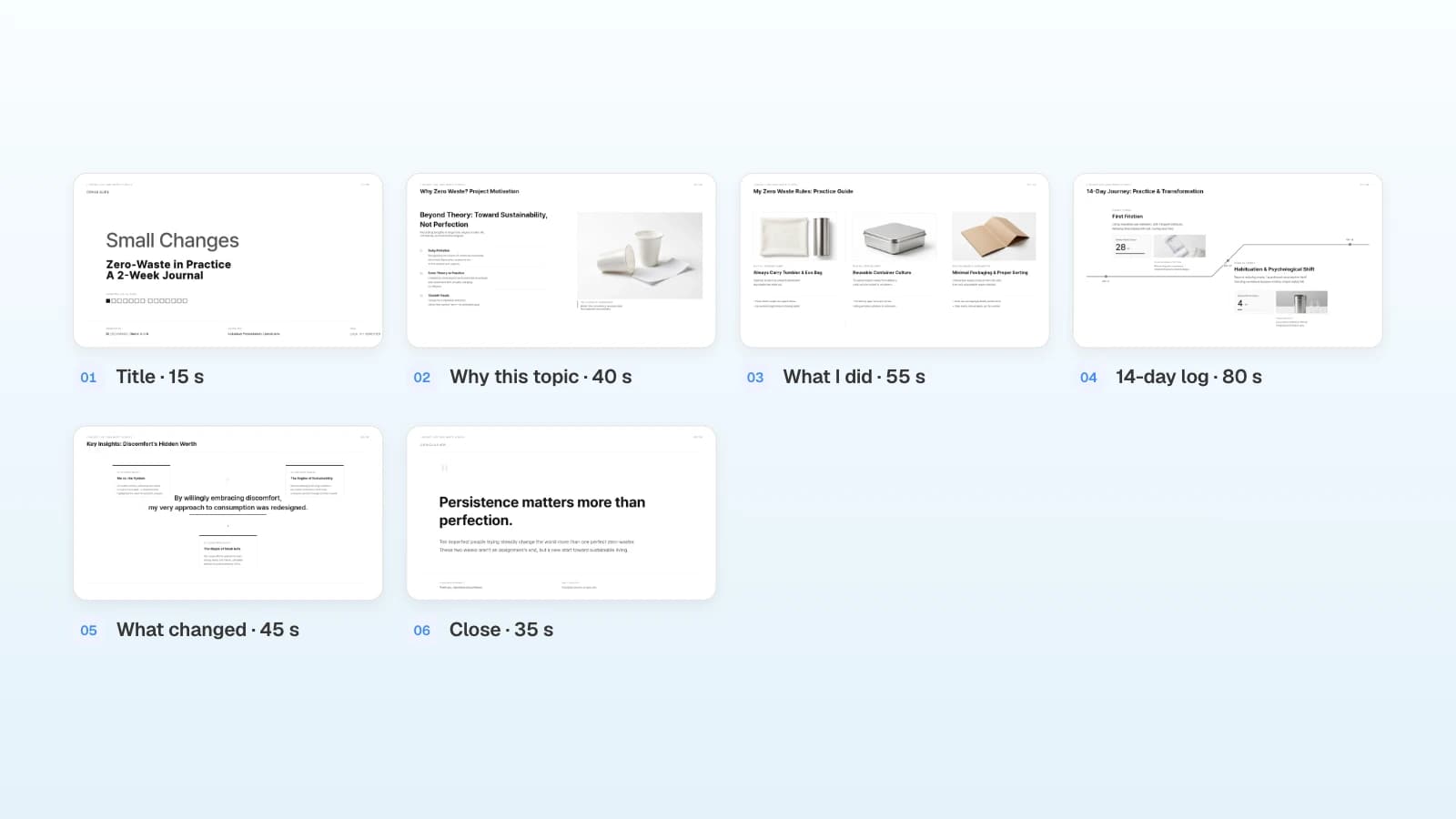
How Many Slides for a 5-Minute Presentation?
Start with 5–7 slides for a free-format five-minute talk. See the official Ignite, PechaKucha, 3MT, and lightning talk rules, a six-slide plan with a time for each slide, and how to rehearse to five minutes.